
Summary
When you create a Jellyfin library, you usually point a new Library to a folder with your media files in and allow the Jellyfin metadata scraper to examine the file, identify it and then download the metadata to add it to a library..... but here's a tip ... on any OS worth it's salt, you can have the physical media file in your pyhsical media folder
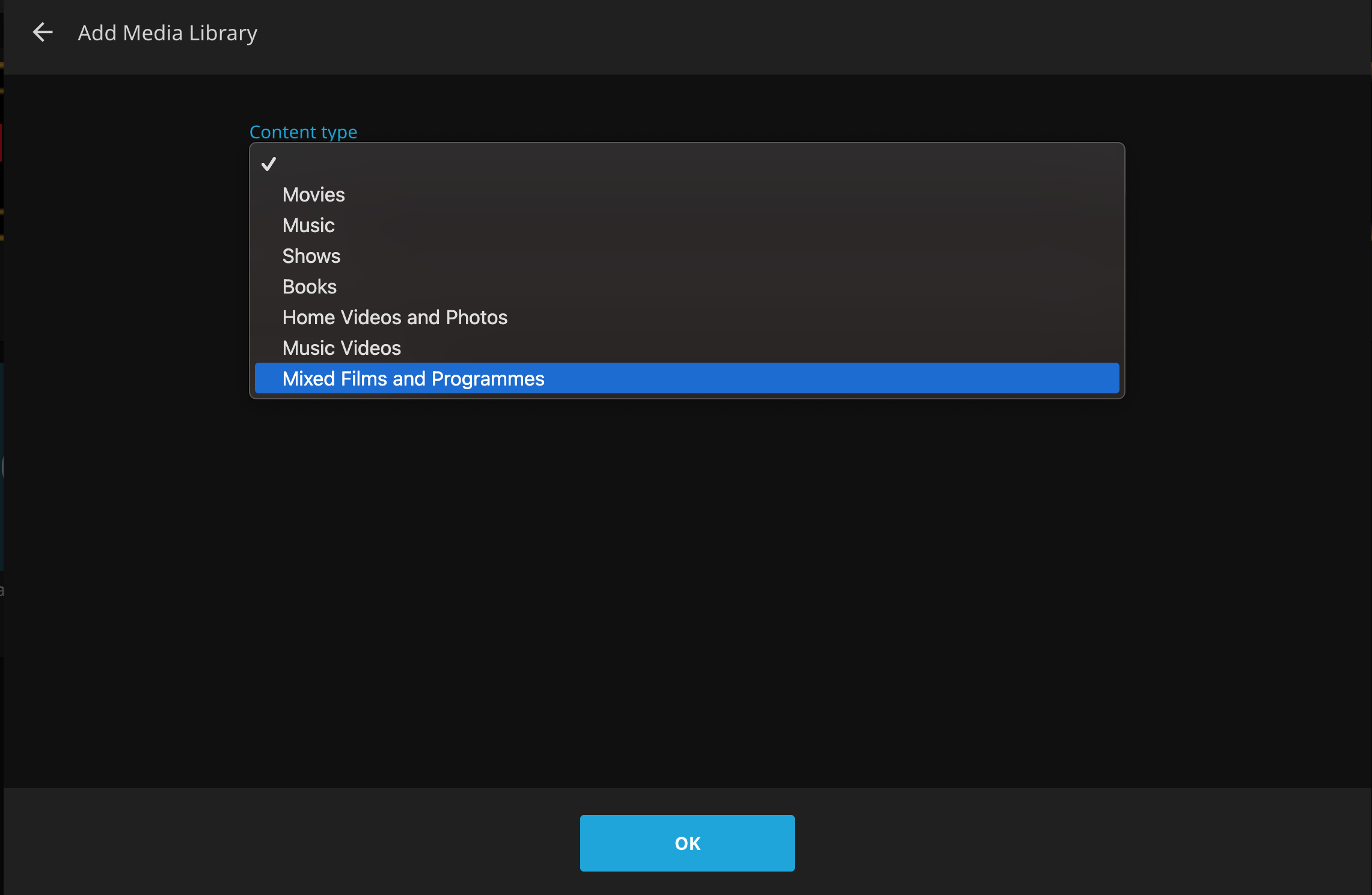
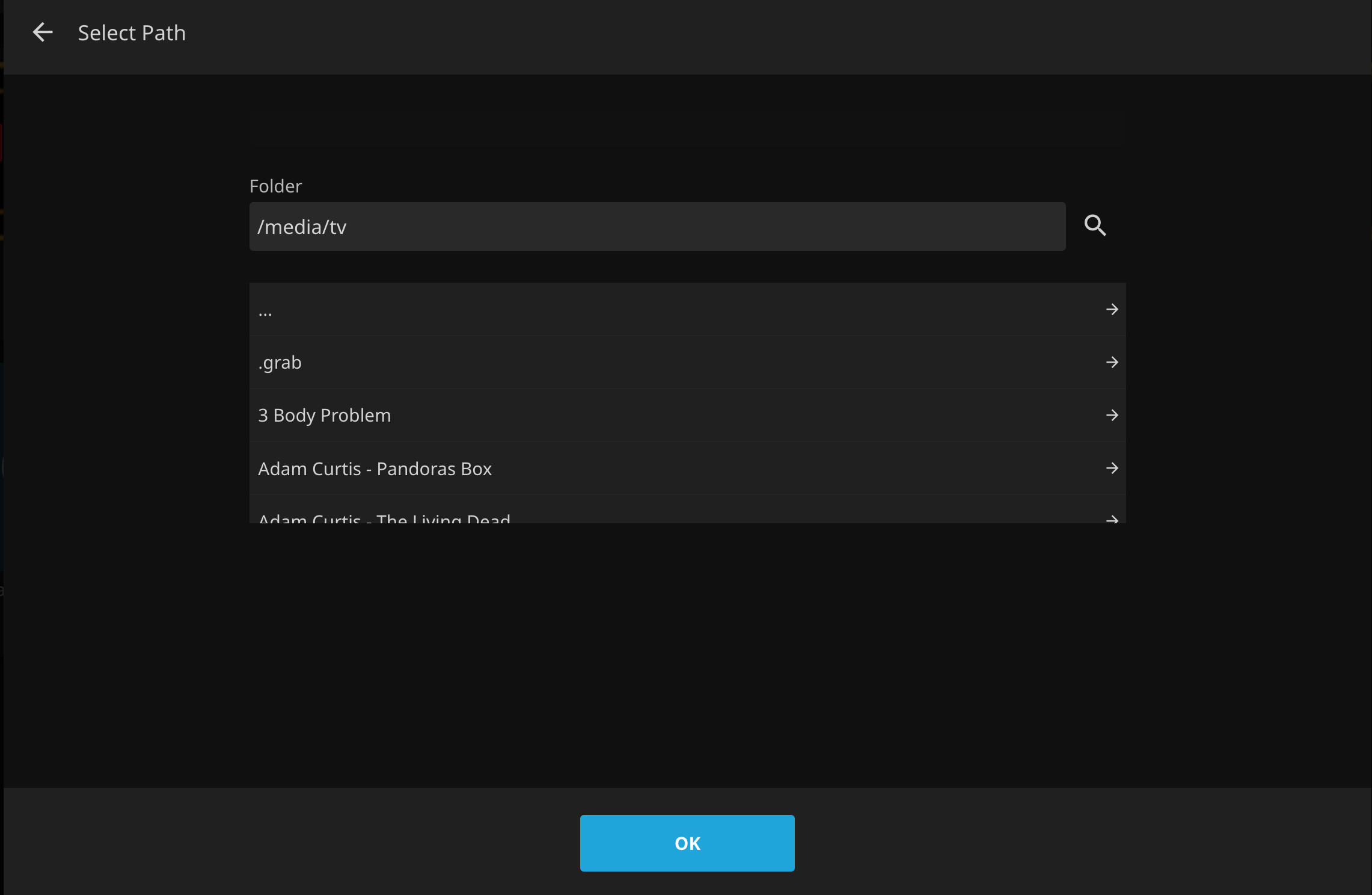
Add Library Dialogue Box
/media/TV/3 Body Problem/Season 01/3 Body Problem - S01E01 - Countdown WEBRip-720p.mkv'
but, you could also create
/media/TV/3 Body Problem/Season 01 - Reversed and create a "link" to the original media file which is a tiny pointer, such as
'linked.mkv --> '3 Body Problem - S01E01 - Countdown WEBRip-720p.mkv'
- When you create the link, it poiunts to the original file, but the link can be named anything
- depending on how you configure your library, it can provide "varied"results
- it may scan and find the embedded metadata from the "source" physical media, then look that up
- it may take just embedded media
- it may take local NFO data
- it may not look up at all
so
- the easy part is linking one or two files, get your feet wet and then test a few configurations;
- always start with a small subzet that "prove" your settings
- then thnk about bulk-naming conventions that work
- then script or automate the file link/rename
- do your inital library scan and then uncheck any changes